

Read and download the CBSE Class 4 Computers Ms Logo Worksheet in PDF format. We have provided exhaustive and printable Class 4 Computers worksheets for Ms Logo, designed by expert teachers. These resources align with the 2026-27 syllabus and examination patterns issued by NCERT, CBSE, and KVS, helping students master all important chapter topics.
Chapter-wise Worksheet for Class 4 Computers Ms Logo
Students of Class 4 should use this Computers practice paper to check their understanding of Ms Logo as it includes essential problems and detailed solutions. Regular self-testing with these will help you achieve higher marks in your school tests and final examinations.
Class 4 Computers Ms Logo Worksheet with Answers
Simple programming with Logo
Contributors: Srinath Perur
Std: IV
Brief Description: This lesson introduces simple Logo programming.
Goal: To introduce simple Logo commands as an extension of the activities done in the last two classes, and to introduce the term program.
Pre-requisites: Lessons 4.22 and 4.23
Duration: Three classes
Detailed description
Note: This lesson is meant to introduce simple Logo programming to children. The content in this section is written to introduce teachers to the basics of Logo programming -- a brief description of the conceptual model, practical information on how to open the application, how to enter commands and run them, and so on. The lesson plan in the next section suggests a different approach when children are to be taught. This is because children in the fourth standard may not be familiar with two ideas that are very useful for working with Logo: the coordinate system and angles. The lesson is designed such that some idea of angles is conveyed during the lesson. But care has been taken that none of the examples or exercises require explicit use of the coordinate system.
A computer requires very detailed and precise instructions regarding how to go about performing a task. A list of such instructions taken together is called a program. The person who writes a program is called a programmer.
When we give instructions to other people, we use a language such as English or Hindi. For giving instructions to a computer, we use a programming language. Just like the languages we speak, a programming language consists of words called keywords or commands, and rules for putting them together so that the computer can understand them. In this lesson we will take a look at how to write simple programs in a language called Logo.
Opening KTurtle
Let us now explore a small part of the programming language Logo. On your Edubuntu system, you can click Applications -> Education -> KTurtle to get the window.
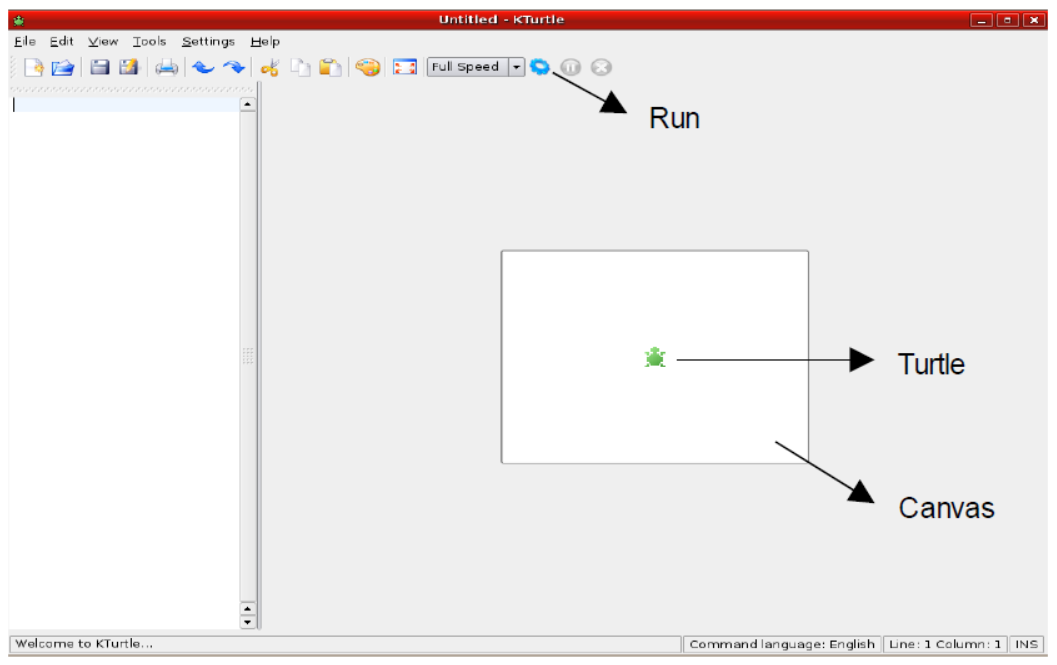
The Canvas and the Turtle
The square in the right pane is called the canvas, and there is a turtle in the center. In the left pane we can give Logo instructions to the turtle to move forward or backward, or turn by a certain amount. The turtle has a pen, and will leave a trail of its movements on the canvas. Thus we can use the turtle to trace a figure on the canvas. While Logo can be used to write larger programs, here we use only a few keywords that help us to control the movement of the turtle and make it draw.
The Canvas
The canvas is the blank region in the right pane in which the turtle draws. The canvas can be thought to be a fine invisible grid made of a large number of squares. The canvas in KTurtle is a \( 300 \times 150 \) grid by default, but it can be changed as required.
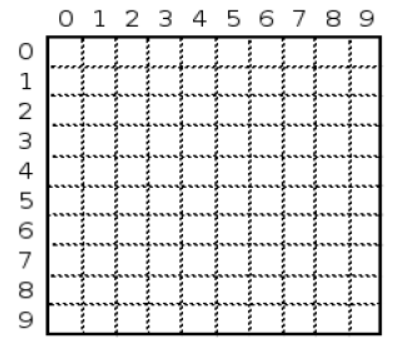
The Turtle
The turtle can be thought of as a cursor on the canvas. It obeys the commands that we type into the left pane of the KTurtle window. When we tell the turtle to move, we also must tell it how much to move. We express this in terms of the number of squares the turtle has to move on the canvas grid. The turtle also leaves behind a trail as it moves, so we can use it to draw on the canvas.
Running a Simple Program
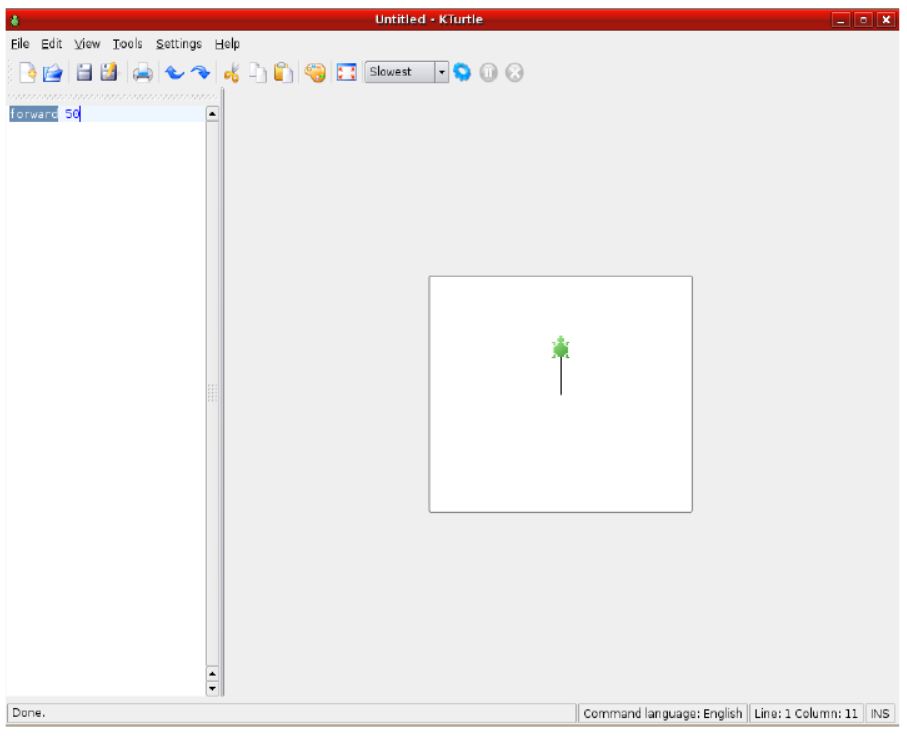
Now let us run a small, one-line program to move the turtle forward by 50 steps. Note that since the canvas grid is very fine, this is not a large distance. To do this:
- Open the KTurtle application.
- Enter forward 50 into the left pane.
- Click on the Run button.
You should find that the turtle moves a short distance forward. You may want to reduce the execution speed to see the movement more clearly.
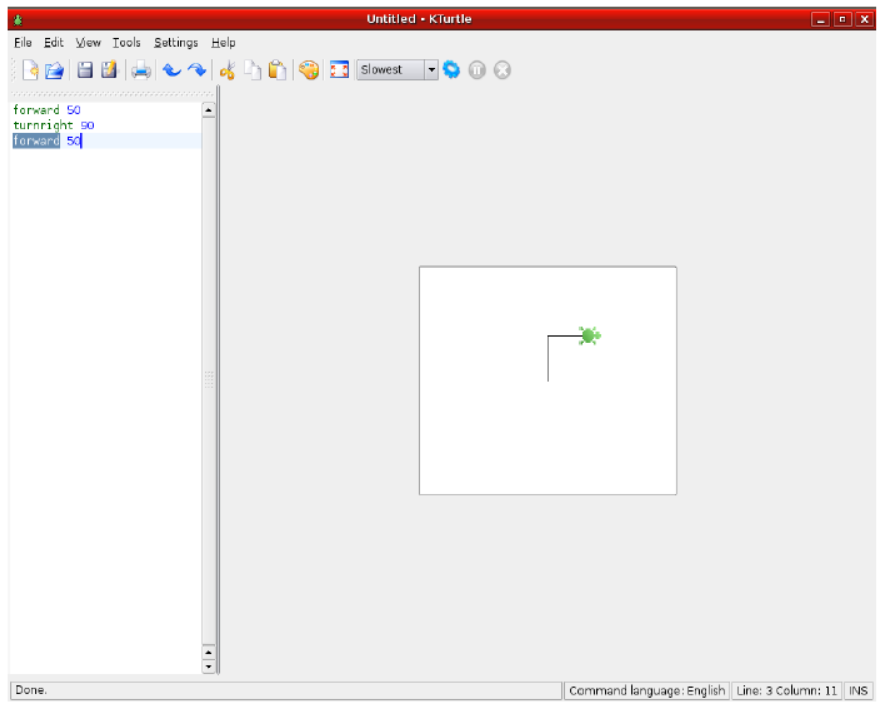
Next, let us say we want the turtle to turn right and then move another 50 steps. We then write in the left pane turnright 90, where 90 represents the angle in degrees that the turtle has to turn, and again forward 50.
Drawing a Square
Now, let us say we want to use what we have learnt to draw a square. We will abandon the current canvas and start afresh by using the reset command. The commands used are:
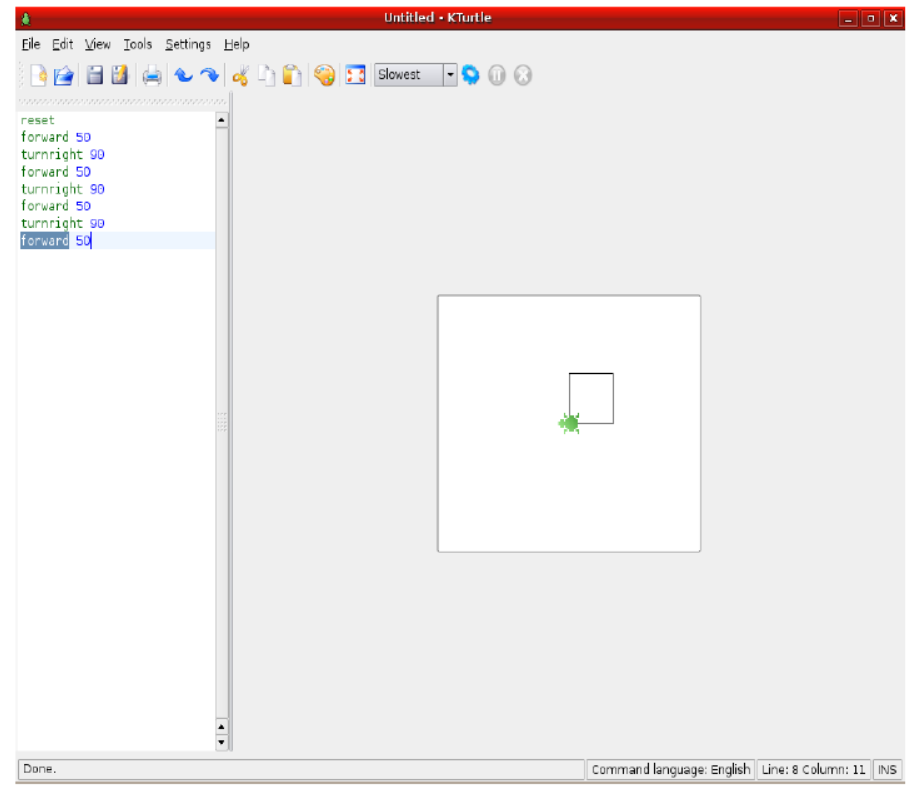
reset
forward 50
turnright 90
forward 50
turnright 90
forward 50
turnright 90
forward 50
Simple Keywords
A few simple commands are listed below:
- reset - Positions the turtle at the centre of a blank canvas
- turnright x - The turtle turns right by x degrees
- turnleft x - The turtle turns left by x degrees
- center - The turtle moves to the center of the canvas
- penup - The turtle lifts its pen and leaves no trail as it moves
- pendown - The turtle puts its pen down and leaves a trail as it moves
- penwidth x - The width of the trail drawn by the turtle
- hide - The turtle becomes invisible
- show - The turtle becomes visible
- wait x - The turtle waits for x seconds before executing the next instruction
Logo can also be used to accomplish more complex drawings, and other tasks such as text processing and mathematical calculations. The KTurtle application contains several example programs. Click on File -> Open Examples in the KTurtle menu and run these examples to see what the programs do.
Lesson Plan
The lesson can start by refreshing the students' memories about the hopping game they played earlier. Just as they directed their friends, now we will be directing a turtle in the computer. The differences between the previous activity and using Logo will have to be specified:
- Here the squares are very small and cannot be seen. They are also much more in number. Therefore for the turtle to move a small distance, we will have to ask it to move many squares.
- Give a demo showing how much the turtle moves when the following pairs of commands are entered and run. Also show that the reset command moves the turtle back to its original position. Set the execution speed to 'slowest' in the drop down menu. Run each pair of commands separately:
reset
forward 50
reset
forward 100
reset
forward 200
Turtle Behavior and Movement Demos
In the last case, the turtle wraps around the canvas and draws from the other side. Explain that this is because the turtle cannot move outside the canvas.
- By now the students will have noticed that the turtle draws a line as it moves. Explain that this can be used to create drawings on the canvas. This is also a good time to introduce the commands penup and pendown. Explain that the command penup causes the turtle to lift its pen and so not draw as it moves. Demonstrate this by showing the difference between these two programs:
reset
forward 100
reset
penup
forward 100
You can start using the word program at this stage. Just explain that a list of instructions given to a computer is called a computer program.
Now demonstrate use of the pendown command as the opposite of penup. Here is a program that draws a dashed line. Explain how it works first before giving a demonstration:
reset
forward 10
penup
forward 5
pendown
forward 10
penup
forward 5
pendown
forward 10
penup
forward 5
pendown
forward 10
Introduce the center command with an example:
reset
forward 100
center
backward 100
center
Earlier in the hopping game, the directions used were turnright and turnleft. Now, mention that the turtle needs to be told how much to turn right or left. Demonstrate these to show how the amount to be turned is indicated from 0 to 90:
reset
forward 100
reset
turnright 30
forward 100
reset
turnright 60
forward 100
Angles and Turning Demos
Demonstrate that turning right or left by 90 takes a full turn in that direction:
reset
forward 100
center
turnright 90
forward 100
Ask the students to remember that turning by 90 will cause a full right turn or left turn.
Note: It is desirable that the demos are done using a projector so that the class can be involved. If a projector is not available, the demos can be done on one computer for small groups of students. It is also important that every student gets some experience in entering a small program and running it.
Worksheet
Question. A list of instructions given to a computer is called a computer p_______.
Answer: program
Question. Match the Logo commands on the left with what it makes the turtle do.
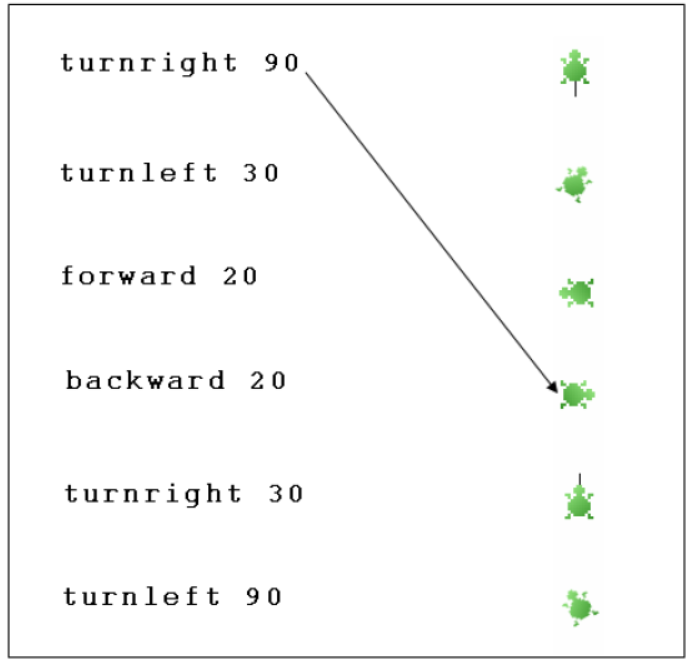
(a) turnright 90
(b) turnleft 30
(c) forward 20
(d) backward 20
(e) turnright 30
(f) turnleft 90
Answer:
• turnright 90 matches with the turtle facing right (pointing east).
• turnleft 30 matches with the turtle turned slightly to the left.
• forward 20 matches with the turtle moving straight forward while leaving a short line trail.
• backward 20 matches with the turtle moving straight backward while leaving a short line trail.
• turnright 30 matches with the turtle turned slightly to the right.
• turnleft 90 matches with the turtle facing left (pointing west).
Question. Write a Logo program to draw a square with sides of length 100. The first two lines of the program are given. Write the remaining commands and run the program!
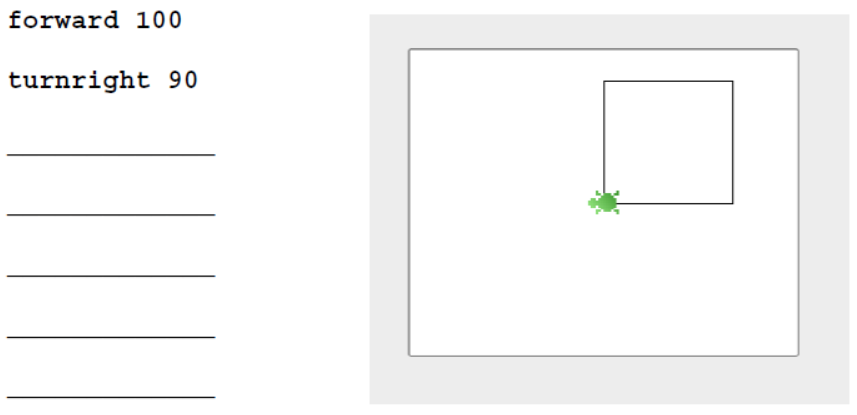
forward 100
turnright 90
Answer:
forward 100
turnright 90
forward 100
turnright 90
forward 100
turnright 90
forward 100
turnright 90
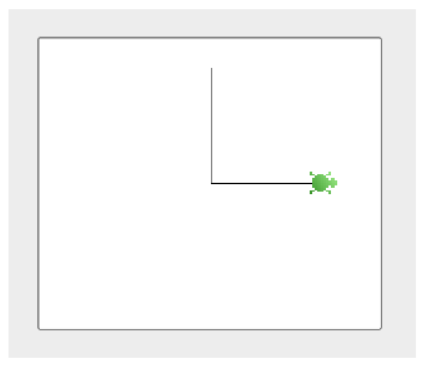
Question. Write a Logo program to draw the letter 'L' on the canvas as shown. The two arms of the L are of length 100. (Hint: Move the turtle forward by 100, bring it backward by 100, then turn right and move forward by 100.)
Answer:
forward 100
backward 100
turnright 90
forward 100
Question. Write a Logo program to draw a plus sign on the canvas as shown. (Hint: Continue the method used for drawing the 'L'.)
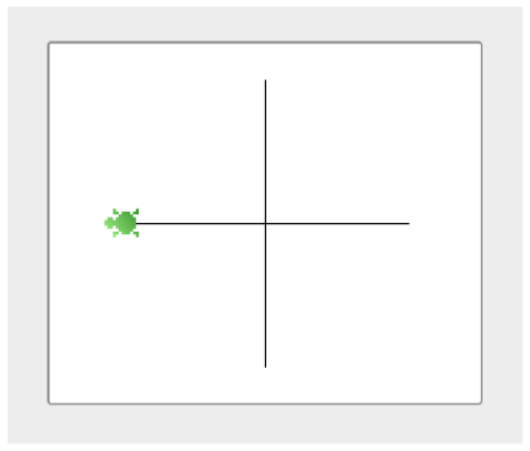
Answer:
forward 100
backward 100
turnright 90
forward 100
backward 100
turnright 90
forward 100
backward 100
turnright 90
forward 100
backward 100
Question. What shape will the turtle draw when the following program is run? Draw it on the empty canvas on the right. (The turtle has already performed the first two commands.)
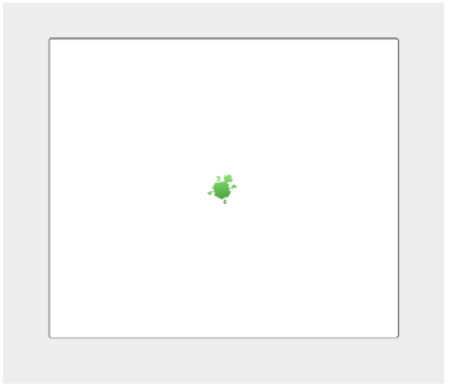
reset
turnright 30
backward 140
turnright 60
forward 140
turnright 60
backward 140
Answer: The turtle will draw an equilateral triangle pointing downwards.
Question. In this exercise you will learn a new command. Enter this program and see what it does!
reset
forward 100
print "Hello"
turnright 90
forward 100
print "I am"
turnright 90
forward 100
print "a"
turnright 90
forward 100
print "turtle!"
Now add the command penup as the second line of the program and run it. What difference do you see? Can you write a program that prints your name on the canvas?
Answer: This program draws a square of size 100 and prints the words "Hello", "I am", "a", "turtle!" at each corner.
If you add the command penup as the second line, the turtle still moves to the corners and prints the text, but it does not draw any lines on the canvas.
Here is a program that prints your name on the canvas:
reset
penup
forward 50
print "[Your Name]"
Question. This program does something very interesting. Enter it and see what!
reset
penup
forward 120
pendown
penwidth 1
backward 30
penwidth 5
backward 30
penwidth 10
backward 30
penwidth 15
backward 30
penwidth 20
backward 30
penwidth 25
backward 30
penwidth 30
backward 30
penwidth 35
backward 30
Now, can you say what does the command penwidth does?
Answer: The penwidth command sets the width (or thickness) of the line drawn by the turtle's pen. As the value increases, the line drawn becomes thicker.
Question. Write any program you can think of by using the commands you have learnt so far!
Answer: Here is a program to draw a simple rectangle of width 100 and height 50:
reset
forward 100
turnright 90
forward 50
turnright 90
forward 100
turnright 90
forward 50
turnright 90
CBSE Computers Class 4 Ms Logo Worksheet
Students can use the practice questions and answers provided above for Ms Logo to prepare for their upcoming school tests. This resource is designed by expert teachers as per the latest 2026 syllabus released by CBSE for Class 4. We suggest that Class 4 students solve these questions daily for a strong foundation in Computers.
Ms Logo Solutions & NCERT Alignment
Our expert teachers have referred to the latest NCERT book for Class 4 Computers to create these exercises. After solving the questions you should compare your answers with our detailed solutions as they have been designed by expert teachers. You will understand the correct way to write answers for the CBSE exams. You can also see above MCQ questions for Computers to cover every important topic in the chapter.
Class 4 Exam Preparation Strategy
Regular practice of this Class 4 Computers study material helps you to be familiar with the most regularly asked exam topics. If you find any topic in Ms Logo difficult then you can refer to our NCERT solutions for Class 4 Computers. All revision sheets and printable assignments on studiestoday.com are free and updated to help students get better scores in their school examinations.
FAQs
You can download the latest chapter-wise printable worksheets for Class 4 Computers Ms Logo for free from StudiesToday.com. These have been made as per the latest CBSE curriculum for this academic year.
Yes, Class 4 Computers worksheets for Ms Logo focus on activity-based learning and also competency-style questions. This helps students to apply theoretical knowledge to practical scenarios.
Yes, we have provided solved worksheets for Class 4 Computers Ms Logo to help students verify their answers instantly.
Yes, our Class 4 Computers test sheets are mobile-friendly PDFs and can be printed by teachers for classroom.
For Ms Logo, regular practice with our worksheets will improve question-handling speed and help students understand all technical terms and diagrams.